Touch
Touch - Bootstrap 5 & Material Design 2.0 component
This component allows you to improve the user experience on touch screens by calling methods on the following custom events: pinch, swipe, tap, press, pan and rotate.
Press
Press calls the chosen method when the touch event on the element lasts longer than 250 miliseconds.
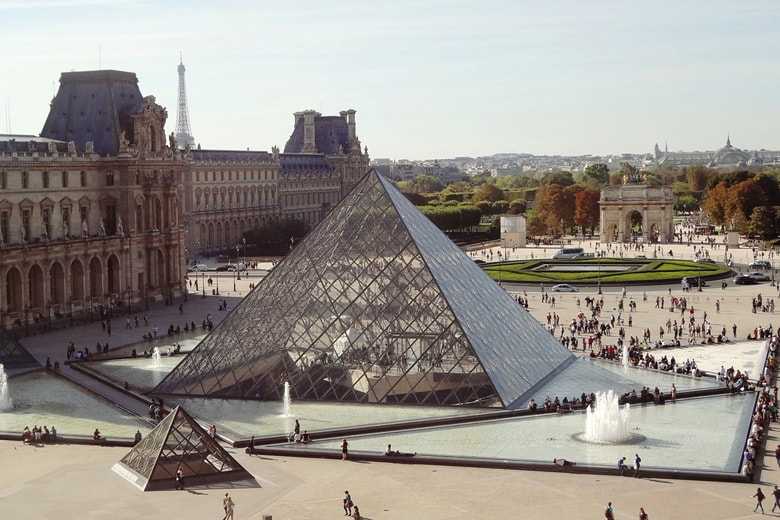
Hold the button to remove the mask from the image
Hold the button to remove the mask from the image
                      const btnPress = document.querySelector('.btn-press');

                      const touch1 = new mdb.Touch(btnPress, 'tap', {
                      duration: 2000
                      });

                      touch1.init();

                      btnPress.addEventListener('tap', (e) => {
                      removeBg.style.backgroundColor = 'rgba(0,0,0,0)';
                      })
Press duration
Touch event press with custom duration.
Hold the button to remove the mask from the image with 5s
Hold the button to remove the mask from the image with 5s
                          const btnPressTime = document.querySelector('.btn-test-2'); const removeBg
                          = document.querySelector('#remove-bg'); const touchPressTime = new
                          mdb.Touch(btnPressTime, 'press', { time: 5000, }); touchPressTime.init();
                          btnPressTime.addEventListener('press', () => {
                          changeBg.style.backgroundColor = 'rgba(111,33,231,.4)'; });
Tap
The callback on tap event is called with an object containing origin field - the x and y cooridinates of the user's touch.
Tap button to change a color
Tap button to change a color
                      const btnTap = document.querySelector('.btn-img-tap');
                      const imgTap = document.querySelector('#img-tap');

                      const tap = new mdb.Touch(btnTap, 'tap');

                      tap.init()

                      btnTap.addEventListener('tap', (e) => {
                      imgTap.style.backgroundColor = colorGen();
                      })
Double Tap
Set default taps to touch event.
Change background color with 2 taps
Change background color with 2 taps
                          function colorGen() { const randomNum = () => { return
                          Math.floor(Math.random() * 255) + 1 } return
                          `rgba(${randomNum()},${randomNum()},${randomNum()},.4)`; } const btnTap =
                          document.querySelector('.btn-tap'); const tap = new mdb.Touch(btnTest3,
                          'tap'); tap.init() btnTap.addEventListener('doubletap', (e) => {
                          changeBgRandom.style.backgroundColor = colorGen(); })
Pan
The pan event is useful for dragging elements - every time the user moves a finger on the element to which the directive is attached to, the given method is being called with an argument consisting of two keys: x and y (the values corresponds to the horizontal and vertical translation).
                      const divPan = document.querySelector("#div-pan");
                      const touch4 = new mdb.Touch(divPan, 'pan');

                      touch4.init()

                      const imgPan = document.querySelector('#img-pan')

                      let moveElement = {
                      x: null,
                      y: null
                      };


                      divPan.addEventListener('pan', (e) => {
                      moveElement = {
                      x: moveElement.x + e.movementX,
                      y: moveElement.y + e.movementY,
                      }

                      imgPan.style.transform =
                      `translate(${moveElement.x}px, ${moveElement.y}px)`
                      })
Pan Left
Pan with only left direction
                          const divPanLeft = document.querySelector('#div-pan-left'); const
                          imgPanLeft = document.querySelector('#img-pan-left'); const touchPanLeft =
                          new mdb.Touch(divPanLeft, 'pan', { direction: 'left', });
                          touchPanLeft.init(); let moveElementLeft = { x: null, };
                          divPanLeft.addEventListener('panleft', (e) => { moveElementLeft = { x:
                          moveElementLeft.x + e.x, }; imgPanLeft.style.transform =
                          `translate(${moveElementLeft.x}px, 0px)`; });
Pan Right
Pan with only right direction
                          const divPanRight = document.querySelector('#div-pan-right'); const
                          imgPanRight = document.querySelector('#img-pan-right'); const
                          touchPanRight = new mdb.Touch(divPanRight, 'pan', { direction: 'right',
                          }); touchPanRight.init(); let moveElementRight = { x: null, };
                          divPanRight.addEventListener('panright', (e) => { moveElementRight = { x:
                          moveElementRight.x + e.x, }; imgPanRight.style.transform =
                          `translate(${moveElementRight.x}px, 0px)`; });
Pan Up/Down
Pan with only up/down direction
                          const divPanUpDown = document.querySelector('#div-pan-up-down'); const
                          imgPanUpDown = document.querySelector('#img-pan-up-down'); const touchDown
                          = new mdb.Touch(divPanUpDown, 'pan', { direction: 'down', }); const
                          touchUp = new mdb.Touch(divPanUpDown, 'pan', { direction: 'up', });
                          touchUp.init(); touchDown.init(); let moveElementUpDown = { y: null };
                          divPanUpDown.addEventListener('panup', (e) => { moveElementUpDown = { y:
                          moveElementUpDown.y + e.y, }; imgPanUpDown.style.transform =
                          `translate(0px, ${moveElementUpDown.y}px)`; });
                          divPanUpDown.addEventListener('pandown', (e) => { moveElementUpDown = { y:
                          moveElementUpDown.y + e.y, }; imgPanUpDown.style.transform =
                          `translate(0px, ${moveElementUpDown.y}px)`; });
Pinch
The pinch event calls the given method with an object containing two keys - ratio and origin. The first one it the ratio of the distance between user's fingers on touchend to the same distance on touchstart - it's particularly useful for scaling images. The second one, similarly as in doubleTap event, is a pair of coordinates indicating the middle point between the user's fingers.
                      const imgPinch = document.querySelector("#img-pinch");

                      const touch5 = new mdb.Touch(imgPinch, 'pan');

                      touch5.init()

                      imgPinch.addEventListener('pinch', (e) => {
                      e.target.style.transform = `scale(${1})`;
                      e.target.style.transformOrigin = `translate(${e.movementX}px, ${e.movementY}px)`
                      })
Swipe Left/Right
The swipe event comes with several modifiers (left, right, up, down) - each of them will ensure that event will fire only on swipe in that particular direction. If the directive is used without any modifier, the callback method will be called each time the swiping occurs, and the string indicating the direction will be passed as an argument.
This exmaple shows exmaple with left and right
Swipe Left-Right to change a color
Swipe Left-Right to change a color
                      function colorGen() {
                      const randomNum = () => {
                      return Math.floor(Math.random() * 255) + 1;
                      };

                      return `rgba(${randomNum()},${randomNum()},${randomNum()},.4)`;
                      }

                      const touchSwipeLeftRight = new mdb.Touch(swipeLeftRight, 'swipe', { threshold: 100 });

                      touchSwipeLeftRight.init();

                      swipeLeftRight.addEventListener('swipeleft', (e) => {
                      e.target.style.backgroundColor = colorGen();
                      });

                      swipeLeftRight.addEventListener('swiperight', (e) => {
                      e.target.style.backgroundColor = colorGen();
                      });
Swipe Up/Down
This exmaple shows exmaple with up and down
Swipe Up-Down to change a color
Swipe Up-Down to change a color
                      function colorGen() {
                      const randomNum = () => {
                      return Math.floor(Math.random() * 255) + 1;
                      };

                      return `rgba(${randomNum()},${randomNum()},${randomNum()},.4)`;
                      }

                      const touchSwipeUpDown = new mdb.Touch(swipeUpDown, 'swipe', { threshold: 120 });

                      touchSwipeUpDown.init();

                      swipeUpDown.addEventListener('swipeup', (e) => {
                      e.target.style.backgroundColor = colorGen();
                      });

                      swipeUpDown.addEventListener('swipedown', (e) => {
                      e.target.style.backgroundColor = colorGen();
                      });
Rotate
This exmaple shows exmaple with rotate
Swipe Up-Down to change a color
                      function colorGen() {
                      const randomNum = () => {
                      return Math.floor(Math.random() * 255) + 1;
                      };

                      return `rgba(${randomNum()},${randomNum()},${randomNum()},.4)`;
                      }

                      const touchSwipeUpDown = new mdb.Touch(swipeUpDown, 'swipe', { threshold: 120 });

                      touchSwipeUpDown.init();

                      swipeUpDown.addEventListener('swipeup', (e) => {
                      e.target.style.backgroundColor = colorGen();
                      });

                      swipeUpDown.addEventListener('swipedown', (e) => {
                      e.target.style.backgroundColor = colorGen();
                      });
Title - API
Usage
Via JavaScript
var myTouch = new mdb.Touch(document.getElementById('id'), event, options)
Via jQuery
Note: By default, MDB does not include jQuery and you have to add it to the project on your own.
$('.example-class').touch(event, options);
Options
Tap
| Name | Type | Default | Description |
|---|---|---|---|
interval
|
number | 300 |
Set interval to tap |
time
|
number | 250 |
Set delays time to tap event |
taps
|
number | 1 |
Set default value of number for taps |
pointers
|
number | 1 |
Set default value of number for pointers |
Press
| Name | Type | Default | Description |
|---|---|---|---|
time
|
number | 250 |
Set time delays to take tap |
pointers
|
number | 1 |
Set default value of number for pointers |
Swipe
| Name | Type | Default | Description |
|---|---|---|---|
threshold
|
number | 20 |
Set distance bettwen when event fires |
direction
|
number | all |
Set direction to swipe. Available options: all, right, left, top, up. |
Rotate
| Name | Type | Default | Description |
|---|---|---|---|
angle
|
number | 2000 |
Set started angle to rotate. |
pointers
|
number | 2000 |
Set default value of number for pointers |
Pan
| Name | Type | Default | Description |
|---|---|---|---|
threshold
|
number | 20 |
Set distance bettwen when event fires |
direction
|
number | 2000 |
Set direction to pan. Available options: all, right, left, top, up. |
pointers
|
number | 2000 |
Set default value of number for pointers |
Pinch
| Name | Type | Default | Description |
|---|---|---|---|
pointers
|
number | 2000 |
Option for tap event, set duration to how long it takes to
take a tap
|
threshold
|
number | 20 |
Set distance bettwen when event fires |
Methods
| Name | Description | Example |
|---|---|---|
dispose
|
Destroy component with this method |
element.dispose()
|
                    var element = document.getElementById('id')
                    var modal = new mdb.Touch(element, 'tap')
                    modal.dispose()
Events
| Name | Description |
|---|---|
tap
|
This event fires tap touch funcionality. |
                    var element = document.getElementById('element-id');
                    var touchEvent = new mdb.Touch(element, 'tap')
                    element.addEventListener('tap', function (e) {
                    // do something...
                    })
| Name | Description |
|---|---|
press
|
This event fires press touch funcionality. |
                    var element = document.getElementById('element-id');
                    var touchEvent = new mdb.Touch(element, 'doubletap')
                    element.addEventListener('doubletap', function (e) {
                    // do something...
                    })
| Name | Description |
|---|---|
pan
|
This event fires pan touch funcionality. |
                    var element = document.getElementById('element-id');
                    var touchEvent = new mdb.Touch(element, 'pan')
                    element.addEventListener('pan', function (e) {
                    // do something...
                    })
| Name | Description |
|---|---|
pinch
|
This event fires pinch touch funcionality. |
                    var element = document.getElementById('element-id');
                    var touchEvent = new mdb.Touch(element, 'pinch')
                    element.addEventListener('pinch', function (e) {
                    // do something...
                    })
| Name | Description |
|---|---|
swipe
|
This event fires swipe touch funcionality. |
                    var element = document.getElementById('element-id');
                    var touchEvent = new mdb.Touch(element, 'swipe')
                    element.addEventListener('swipe', function (e) {
                    // do something...
                    })
| Name | Description |
|---|---|
rotate
|
This event fires rotate touch funcionality. |
                    var element = document.getElementById('element-id');
                    var touchEvent = new mdb.Touch(element, 'rotate')
                    element.addEventListener('rotate', function (e) {
                    // do something...
                    })
Import
MDB UI KIT also works with module bundlers. Use the following code to import this component:
import { Touch } from 'mdb-ui-kit';